Frequently Asked Questions
Not sure where to start? Choose a search type below for a step-by-step guide to using the Colorado Biobank Portal. Each guide explains how to run a search, navigate the results, and interpret the data you see. Results throughout the portal reflect the current CCPM Biobank research freeze.
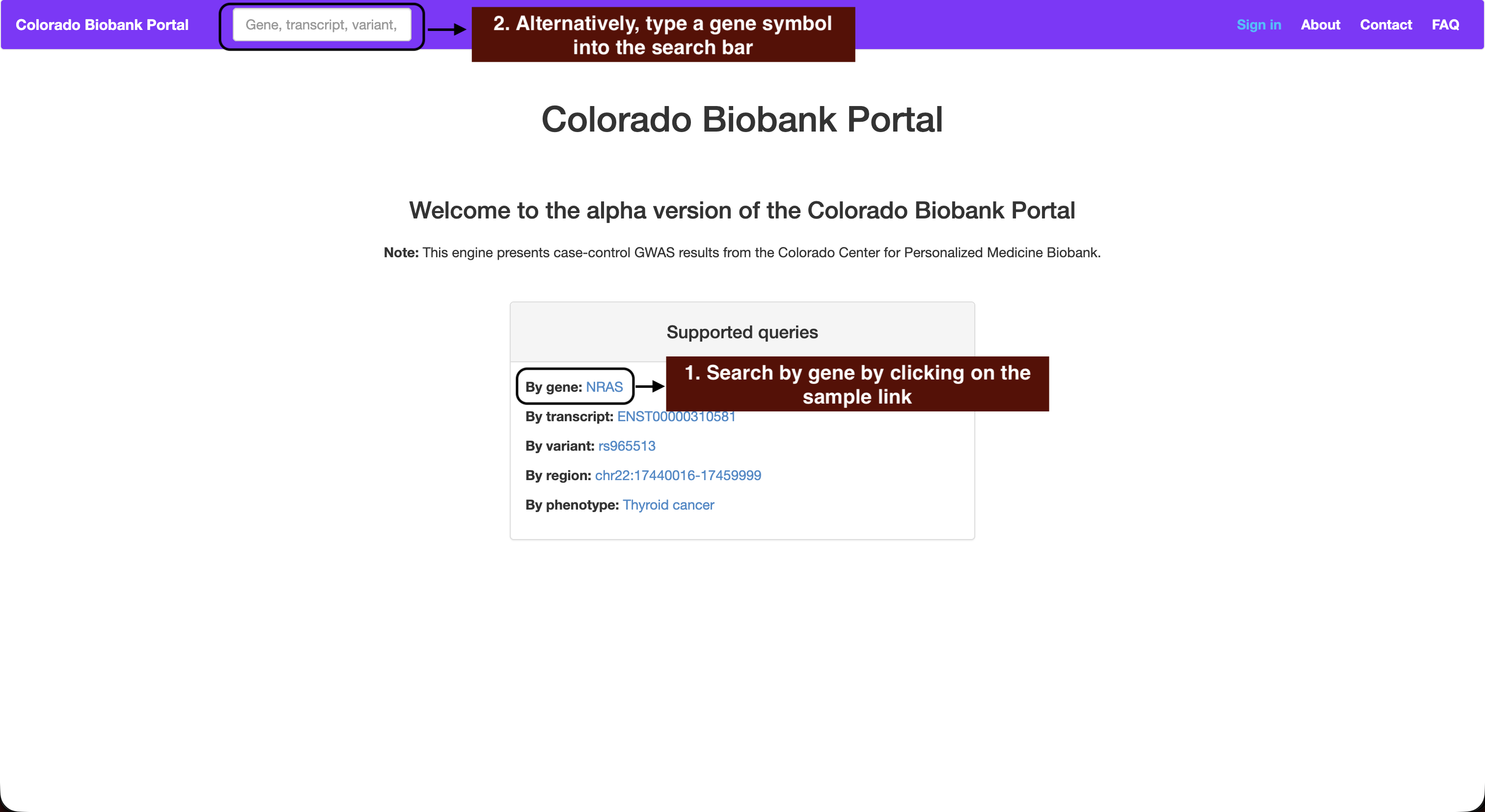
1. Start the search
The quickest way to try this is the By gene example on the home page, by clicking NRAS. Otherwise, type a gene symbol into the search box in the top bar.
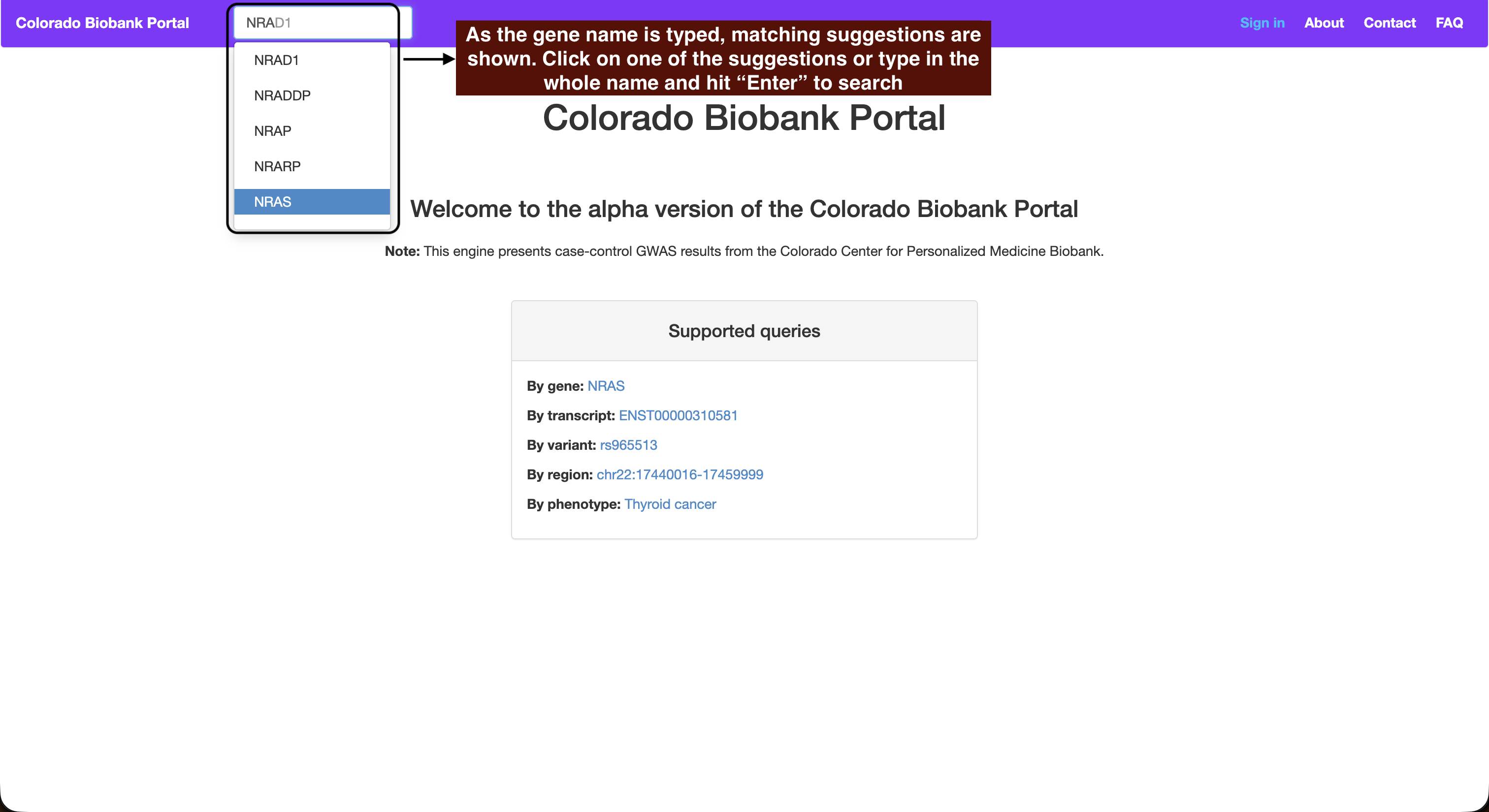
2. Pick from the suggestions
As you type, the search box suggests matching gene symbols. Choose one from the list or type in the whole name rather than pressing "Enter" on a partial name as the portal searches on the exact symbol.
3. Results Layout
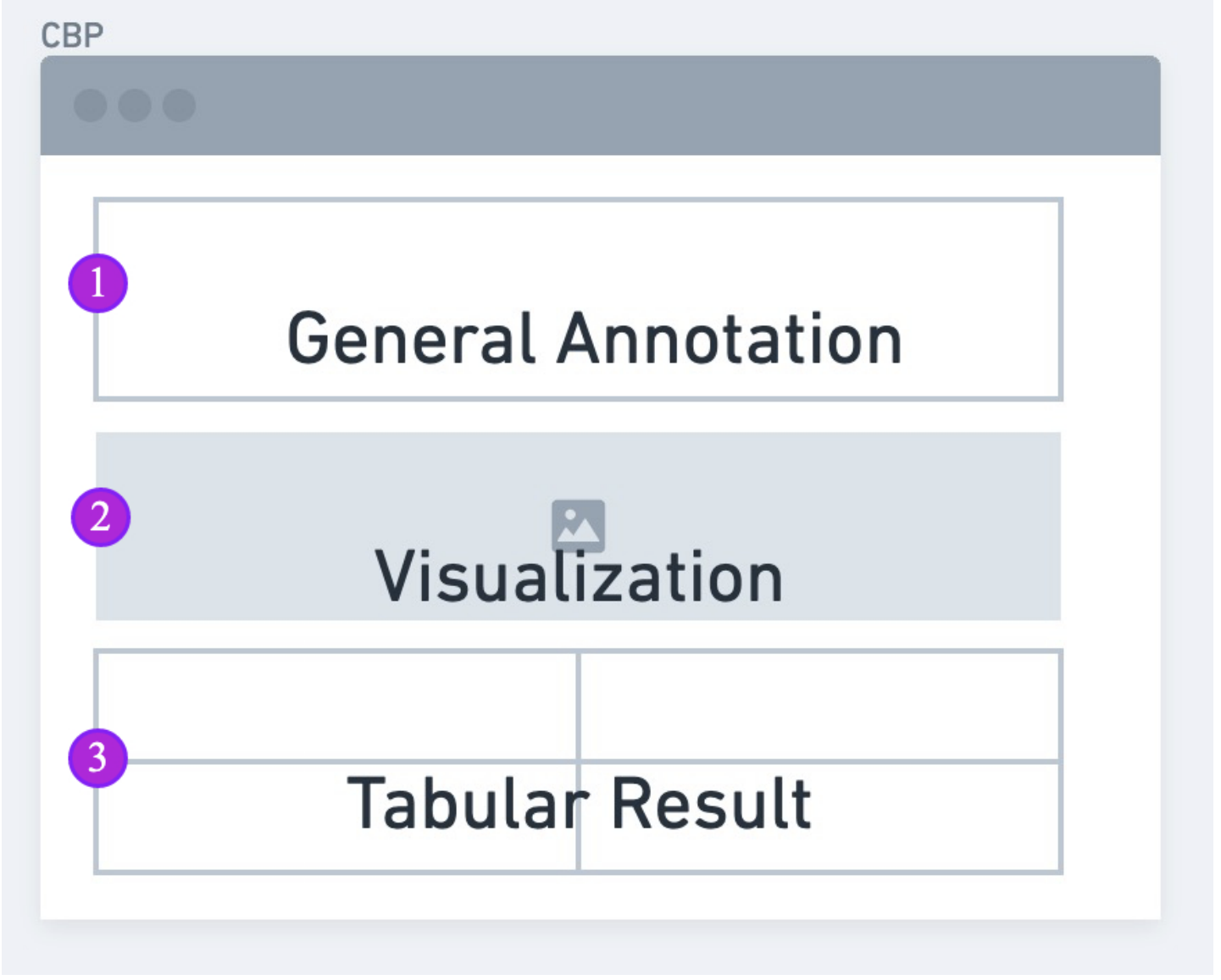
The search result will be displayed in this general layout that consists of three segments:
1. General Annotation: information on the search results and relevant external links.
2. Visualization: graphical representation of the search results.
3. Tabular Result: table layout of search results summary statistics.
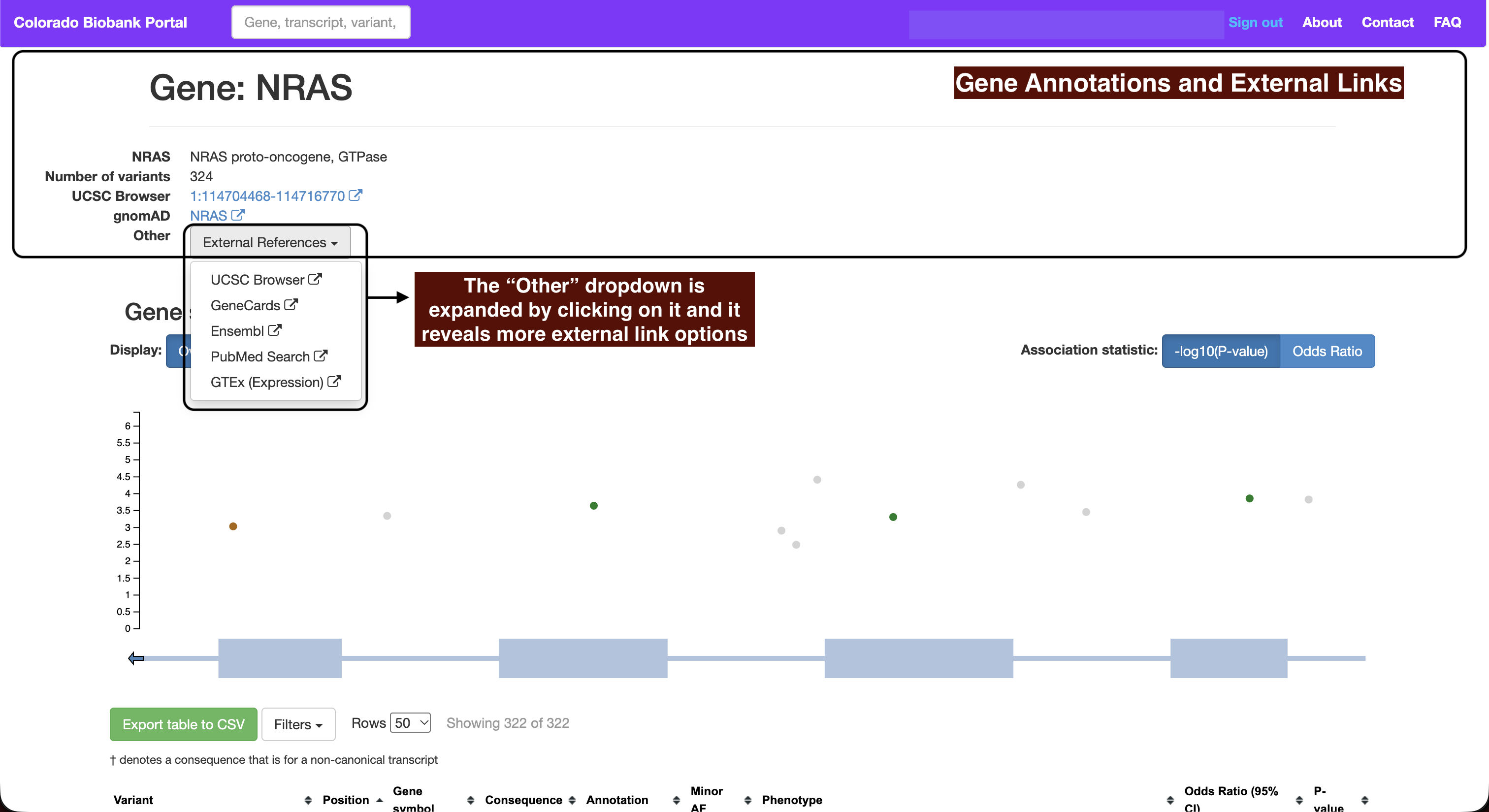
4. Gene annotation and external links
The top of the result page gives the gene's full name, how many variants the portal holds for it, and its genomic coordinates. External References opens a menu of links out to UCSC Browser, GeneCards, Ensembl, PubMed and GTEx.
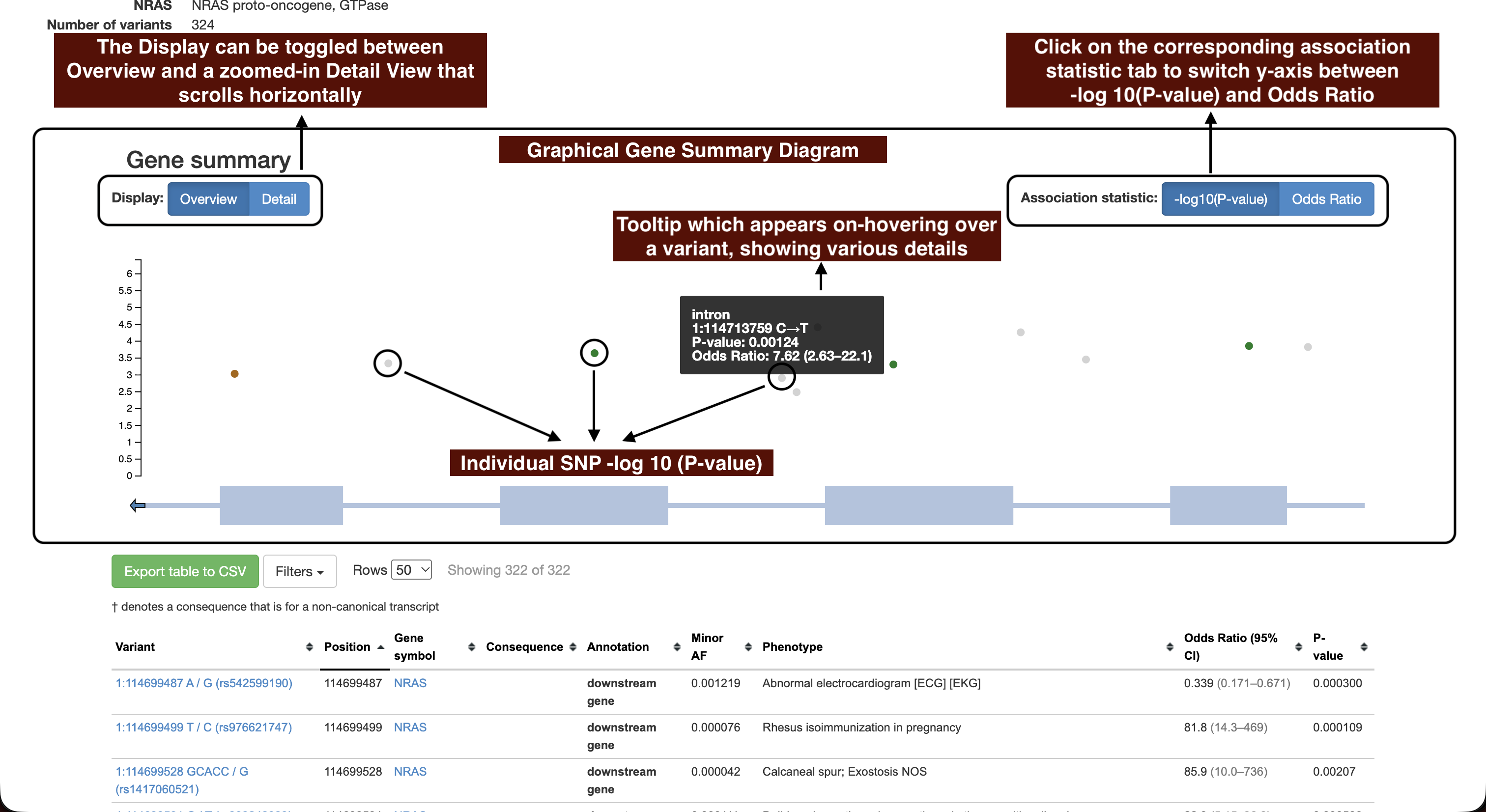
5. Gene summary plot
Each dot is one variant. Its height is the strength of that variant's strongest phenotype association, and its colour reflects the predicted consequence. The bar underneath shows the gene's exons, so you can see where in the gene each variant falls.
Association statistic switches the y-axis between −log10(P-value) and Odds Ratio. Display switches between Overview and a zoomed-in Detail view that scrolls horizontally. Hover any point to see the variant, its consequence, p-value, and odds ratio with its 95% confidence interval. The matching row in the table below highlights at the same time.
6. Variants table
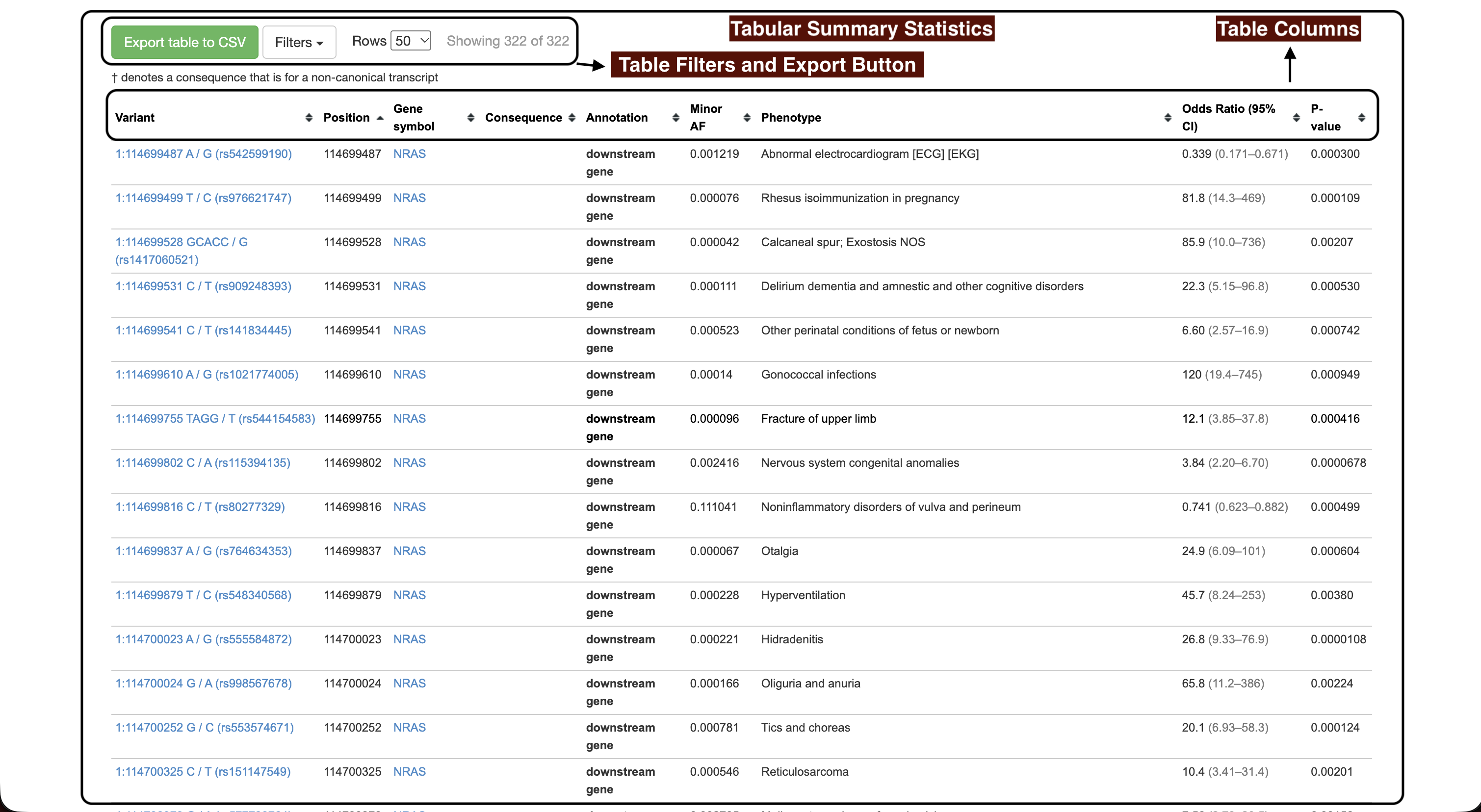
Every variant in the gene is one row each, showing its strongest association. See Reading the results table for what each column means, and Filtering, sorting and exporting for details on narrowing it down.
1. Start the search
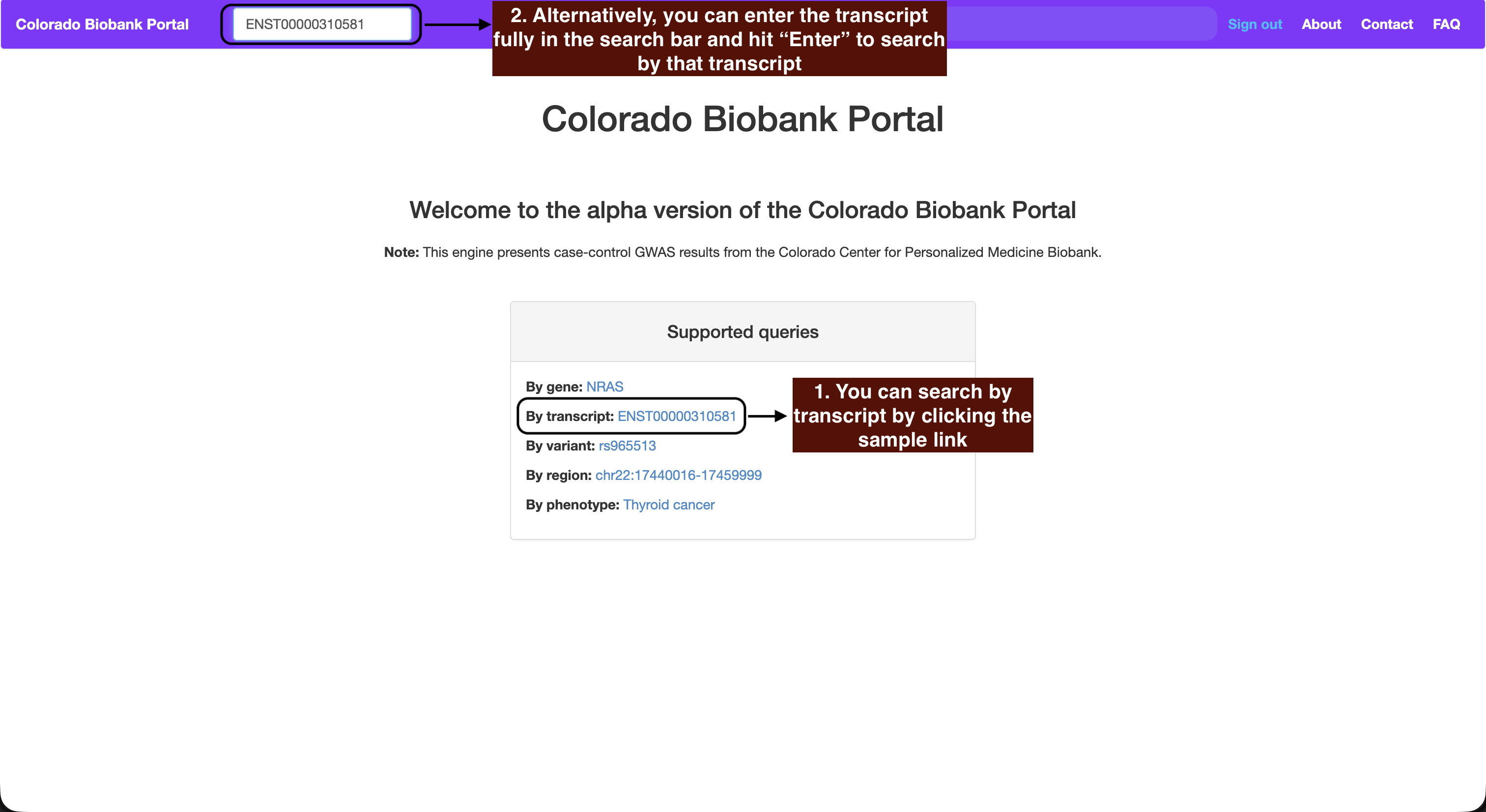
Click the By transcript example on the home page (ENST00000310581), or type an ENSEMBL transcript ID into the search box.
Format: ENST00000310581
2. Transcript annotation
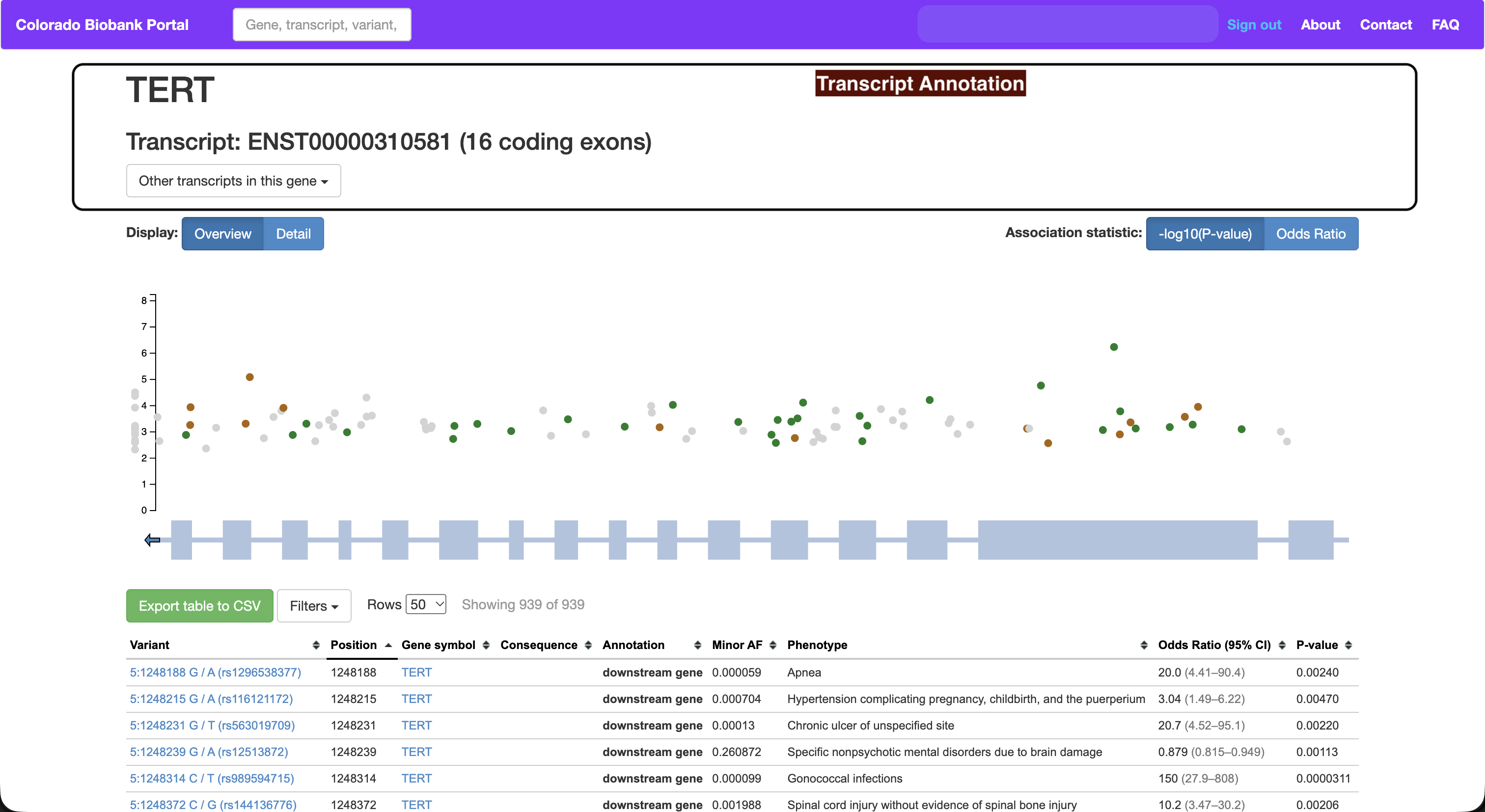
The top of the page names the gene the transcript belongs to, the transcript ID, and how many coding exons it has.
3. Switching transcripts
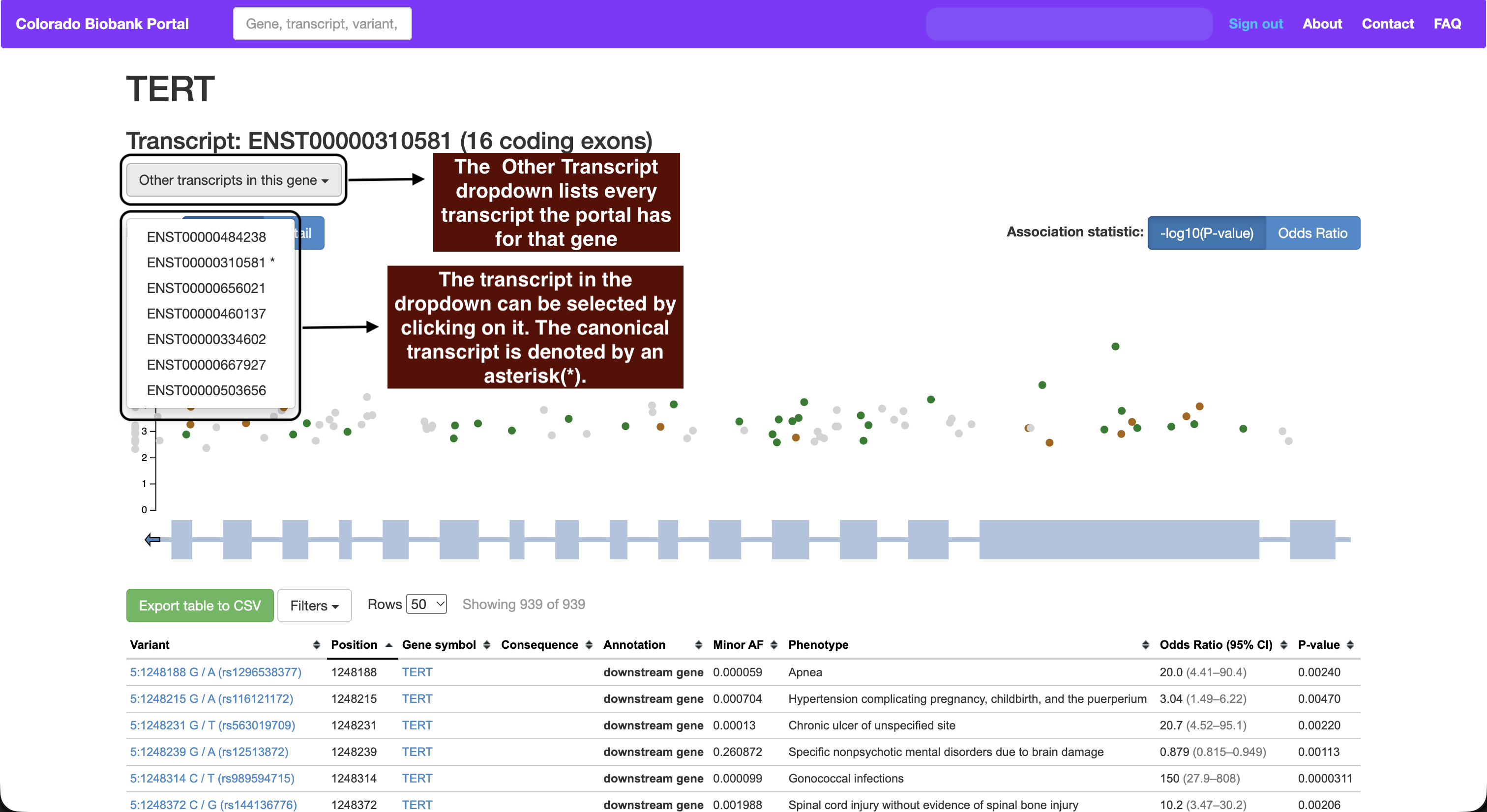
Other transcripts in this gene lists every transcript the portal holds for the same gene. The canonical transcript is marked with an asterisk. Selecting one loads its page.
4. Transcript summary plot
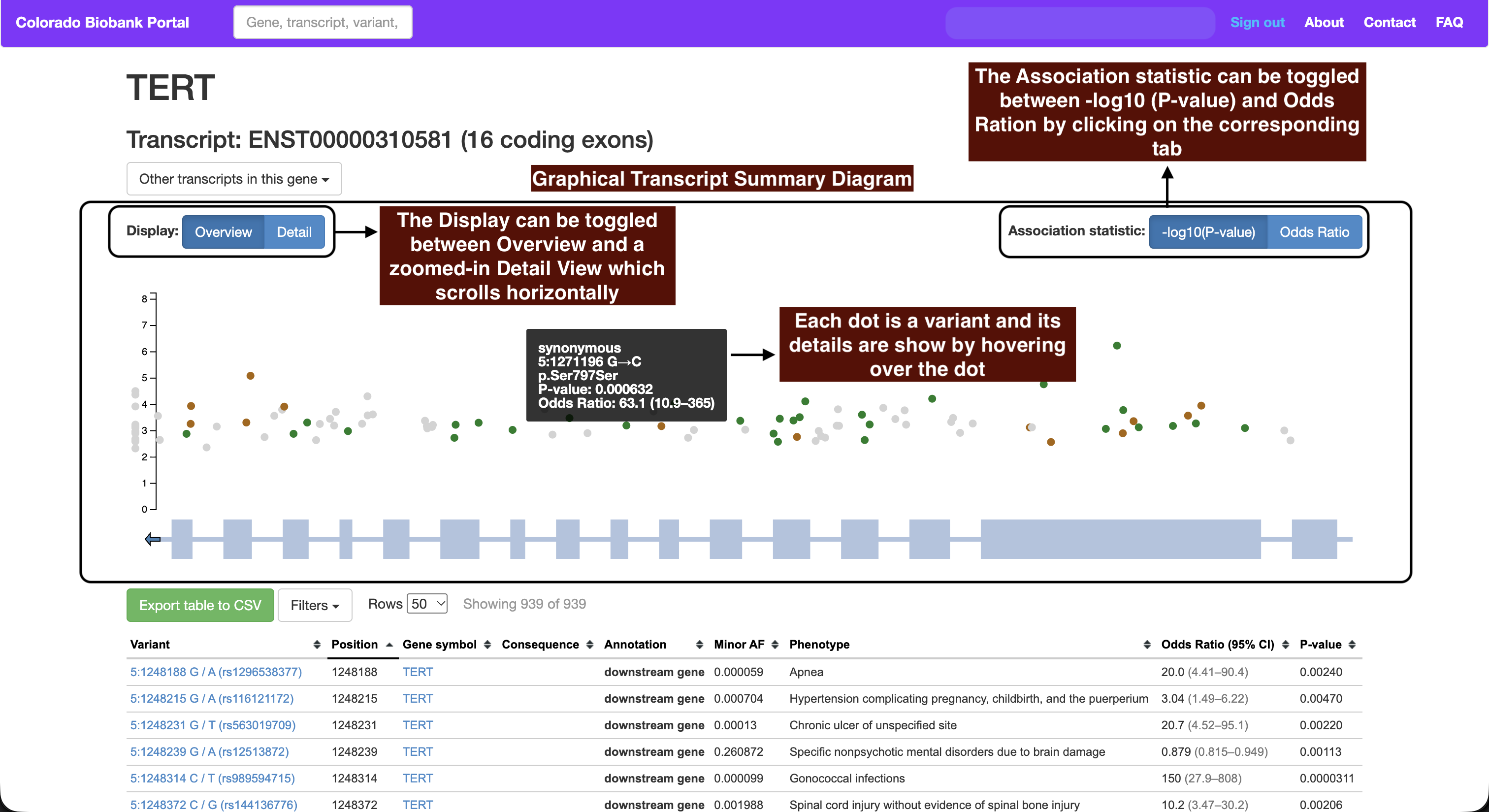
The same plot as the gene page, restricted to this transcript: dots are variants, the bar below shows the transcript's exons, and the Association statistic and Display controls behave identical to the gene page plot. Hovering a point shows its details and highlights its table row.
5. Variants table
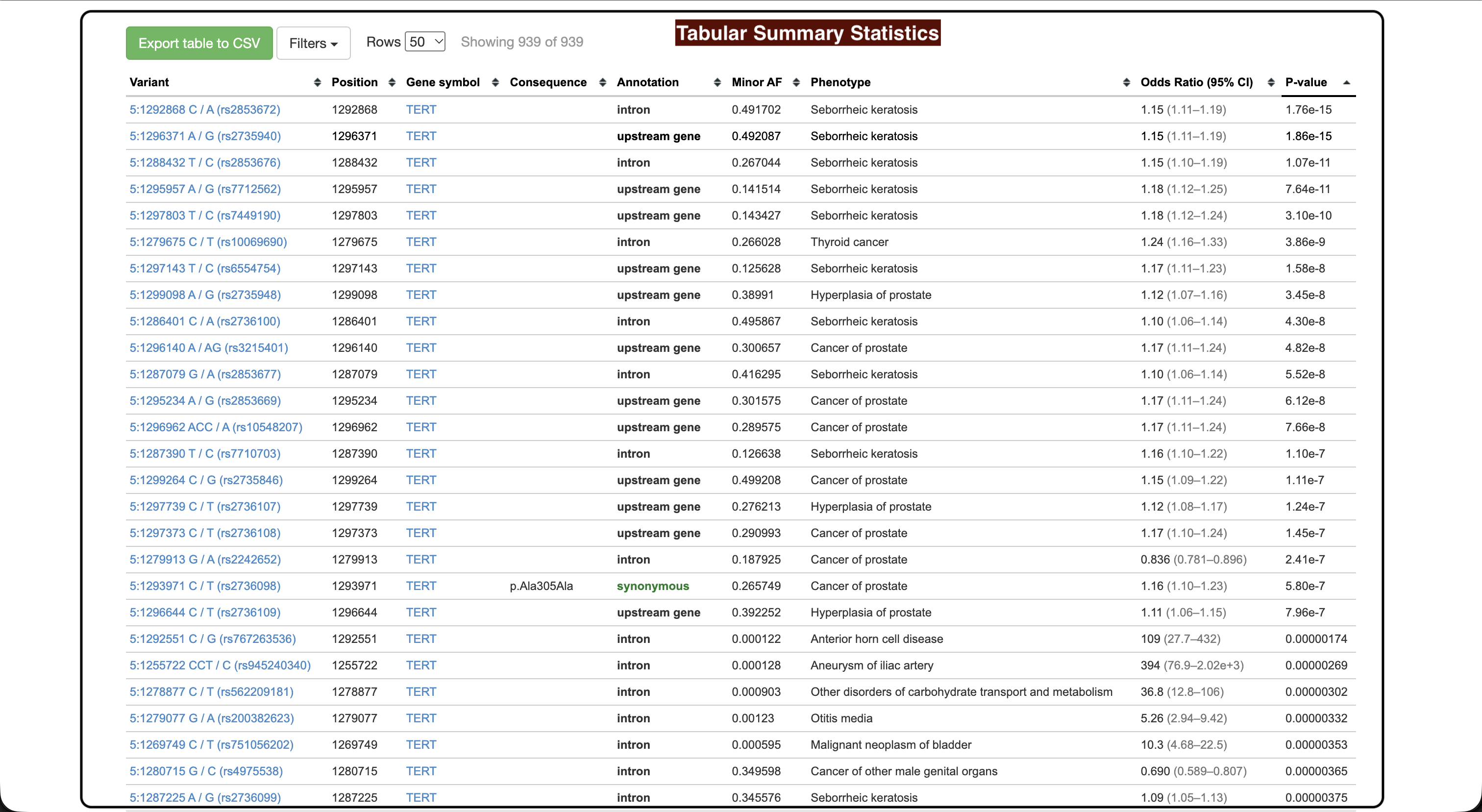
Same columns and controls as the gene page. See Reading the results table and Filtering, sorting and exporting.
1. Start the search
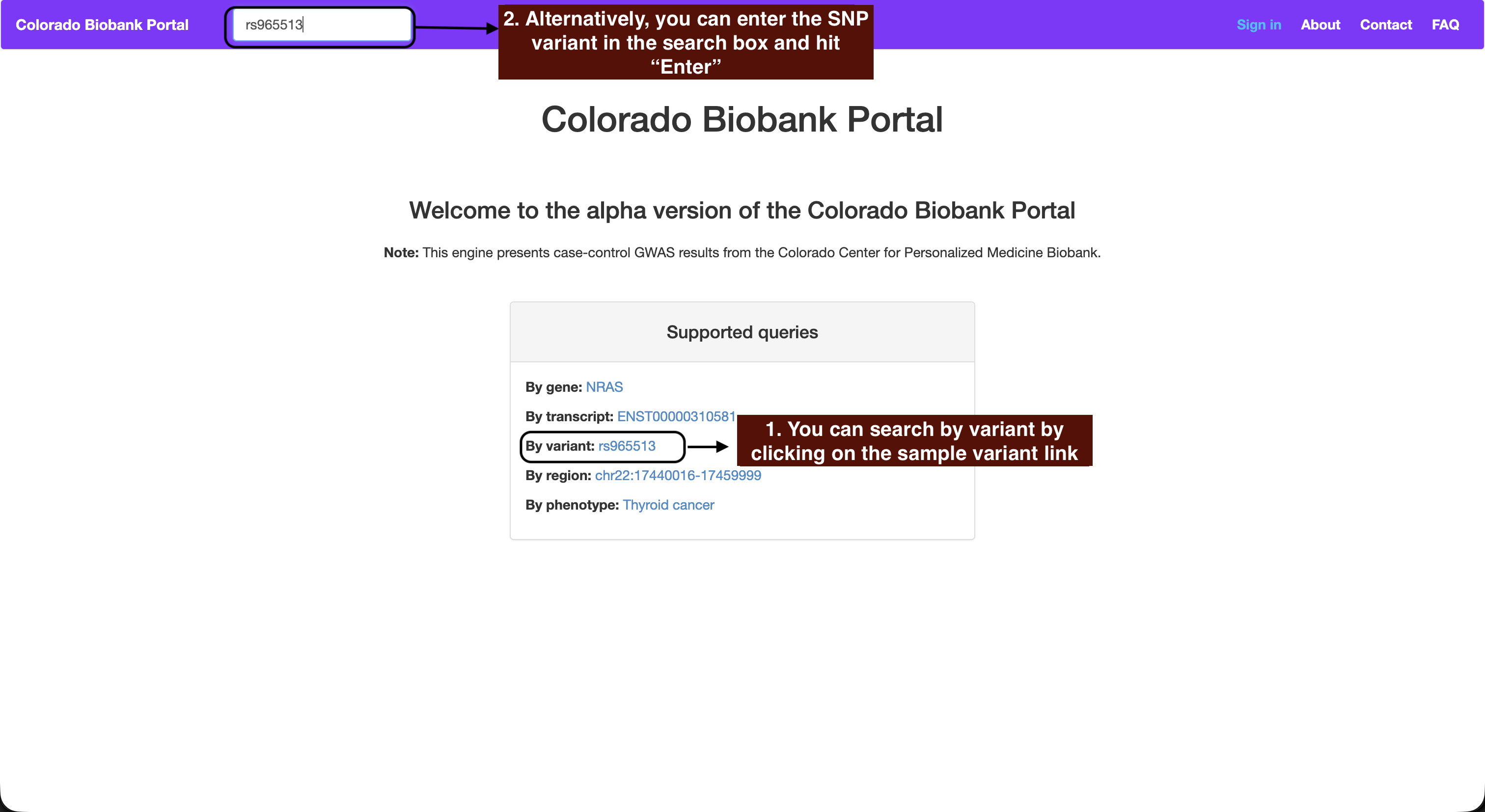
Click the By variant example on the home page (rs965513), or type an rsID into the search box.
Formats: rs965513, or chromosome, position,
reference and alternate allele as 9-97793827-G-A
2. Variant annotation and external links
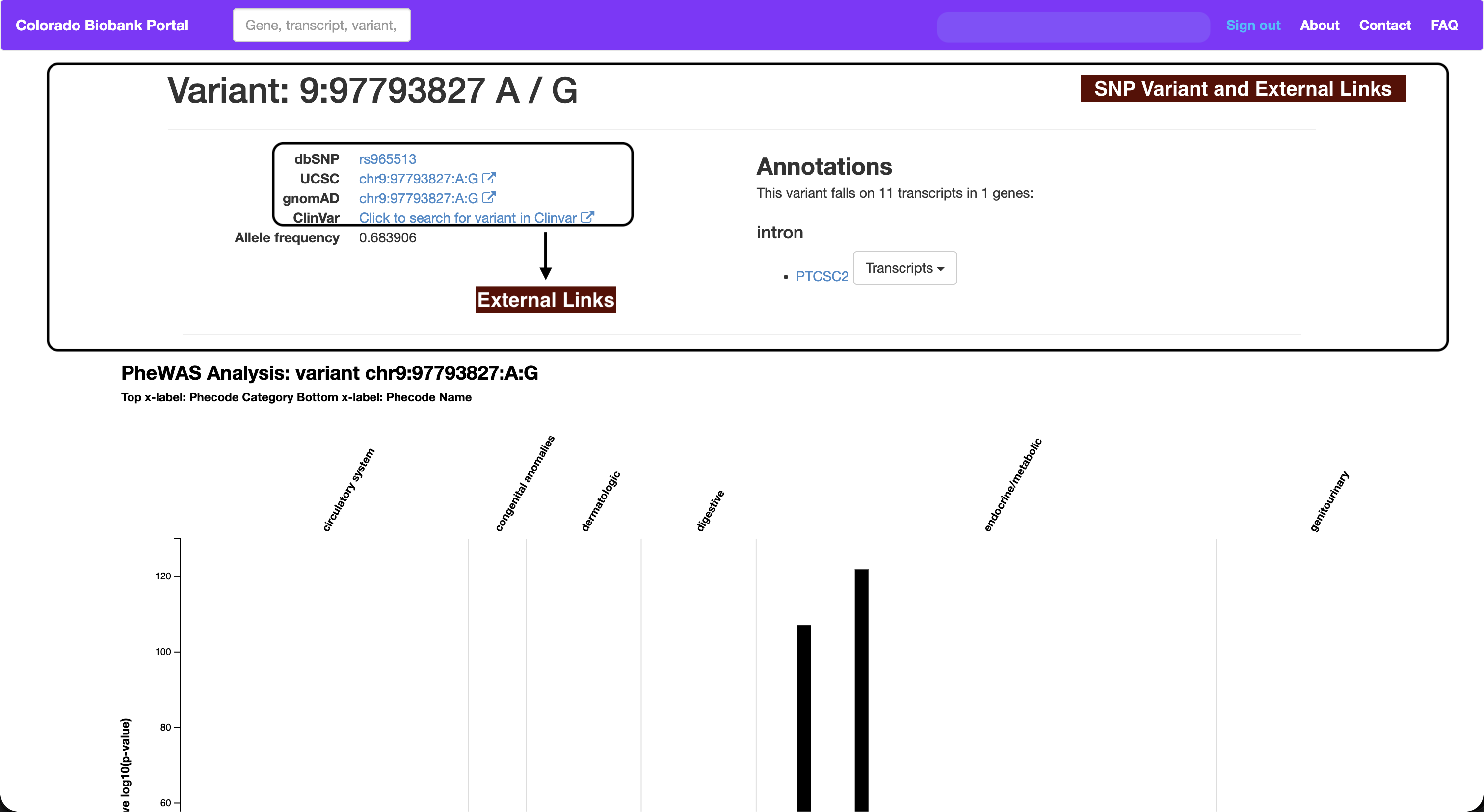
The top of the page identifies the variant by position and alleles, and links out to dbSNP, UCSC, gnomAD and ClinVar. Annotations lists the transcripts and genes the variant falls in, with its predicted consequence in each. Click on each external link to study the SNP variant further.
3. Exploring other transcripts
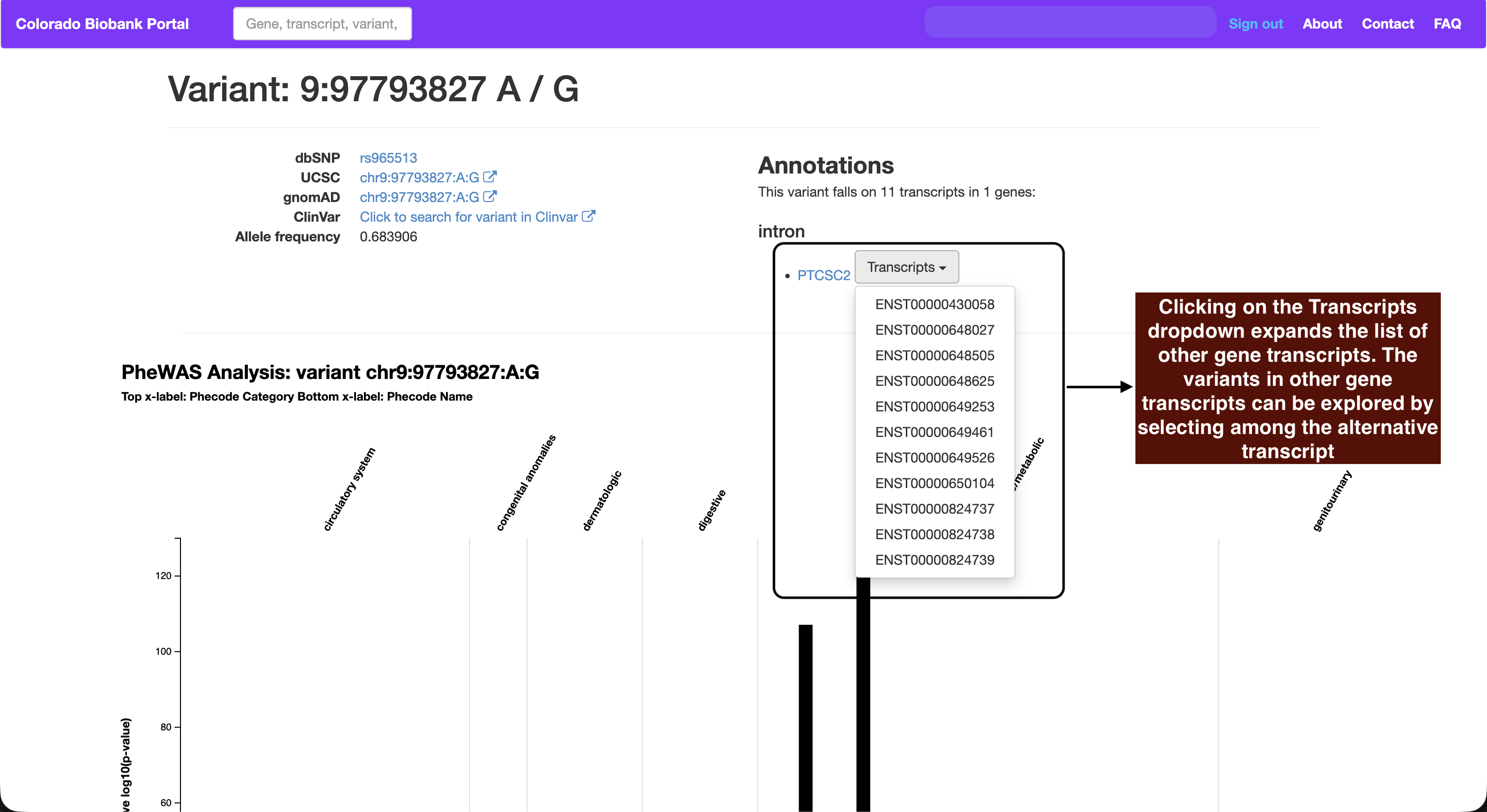
A variant usually falls in several transcripts. The Transcripts menu beside each gene lets you jump to the variant in the context of any of them.
4. PheWAS plot
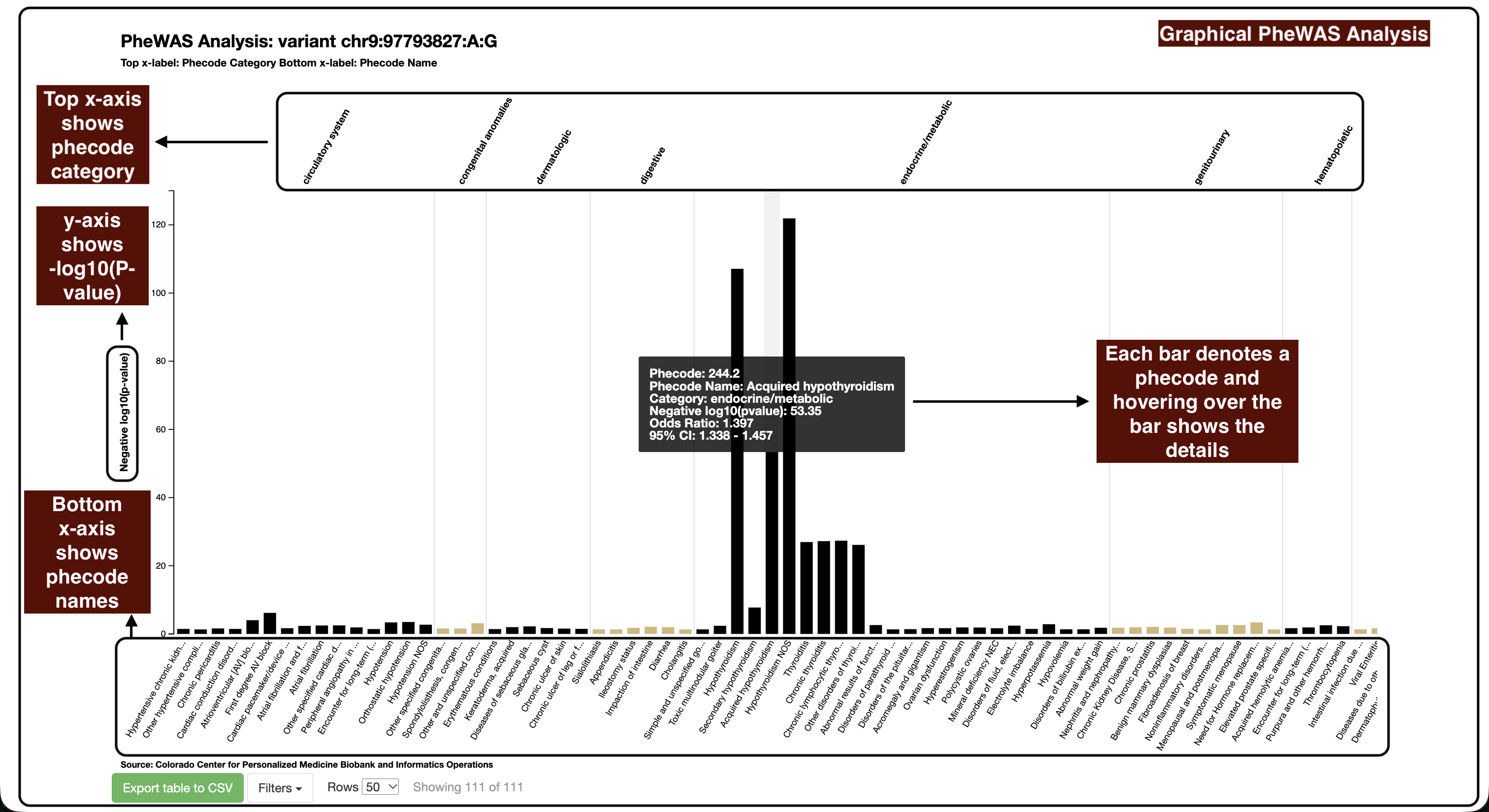
One bar per phenotype, grouped by phecode category along the x-axis, with −log10(P-value) on the y-axis — so the tallest bars are the phenotypes most strongly associated with this variant. Category names run along the top and phenotype names along the bottom, and categories alternate in colour to keep the groups readable.
Hover a bar for the phecode, phenotype name, category, p-value, odds ratio and 95% confidence interval. Click one to open that phenotype's own page.
5. PheWAS table
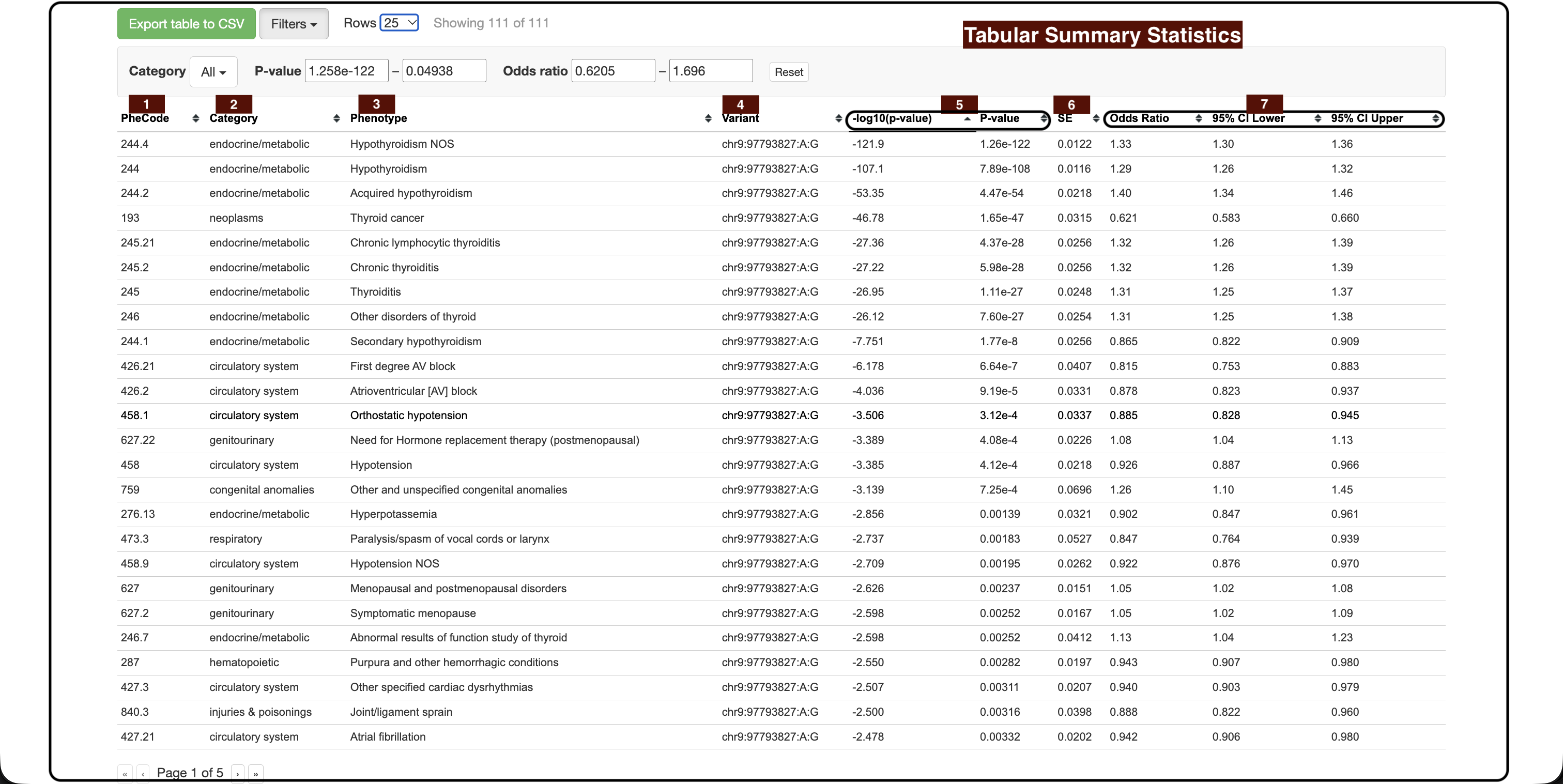
One row per phenotype tested against this variant. The columns differ from the other search types:
- 1. PheCode
- Phecode identifier for the phenotype.
- 2. Category
- Broad grouping the phecode belongs to, such as neoplasms or circulatory system.
- 3. Phenotype
- Description of the phecode.
- 4. Variant
- The variant being tested — the same on every row.
- 5. −log10(p-value) and P-value
- The association's strength, shown both ways.
- 6. SE
- Standard error of the effect estimate.
- 7. Odds Ratio, 95% CI Lower, 95% CI Upper
- Effect size and its 95% confidence interval. An interval that does not cross 1 indicates an association in the stated direction; a very wide interval means the estimate is imprecise and should be treated with caution.
Filters here offers a Category multiselect alongside the p-value and odds ratio ranges, which are useful for looking at one disease area at a time. See Filtering, sorting and exporting.
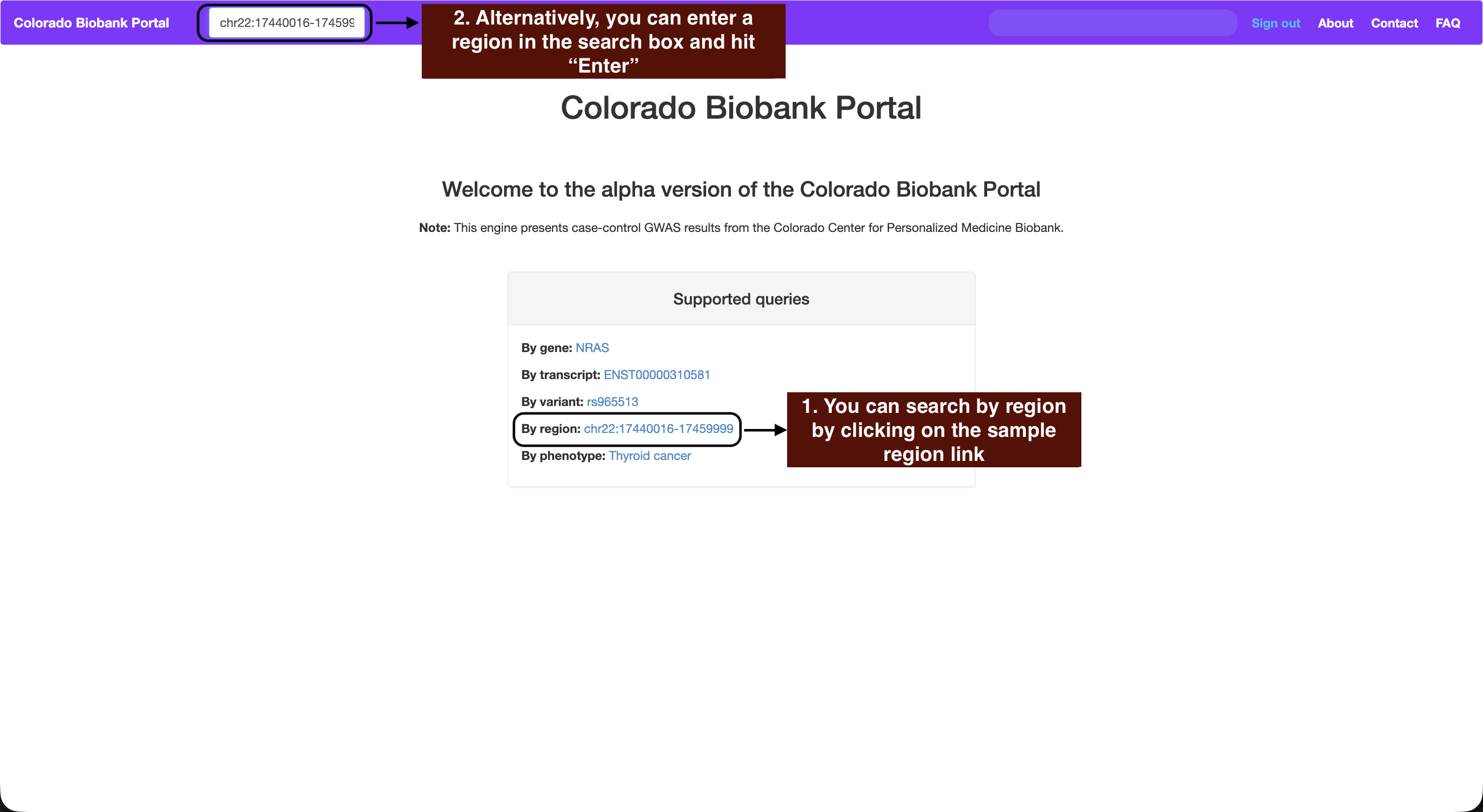
1. Start the search
Click the By region example on the home page (chr22:17440016-17459999), or type coordinates into the search box.
Format: chromosome:start-stop, for example chr22:17440016-17459999
2. Coverage summary plot
A peak for each variant in the region, with height showing −log10(P-value) of its strongest phenotype association. The x-axis is genomic position, so clusters of tall peaks point to where the signal sits. Any genes overlapping the region are listed underneath.
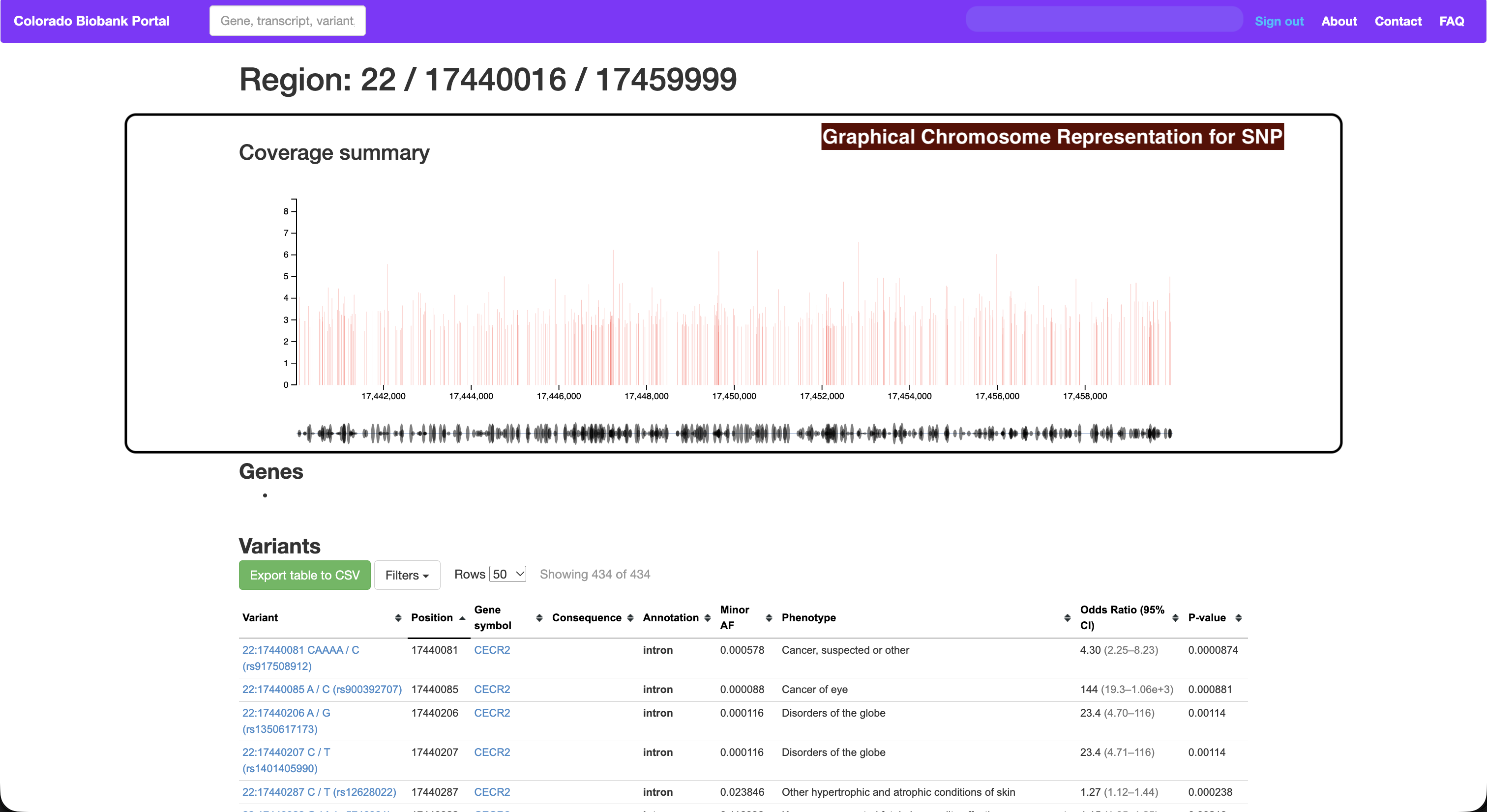
3. Variants table
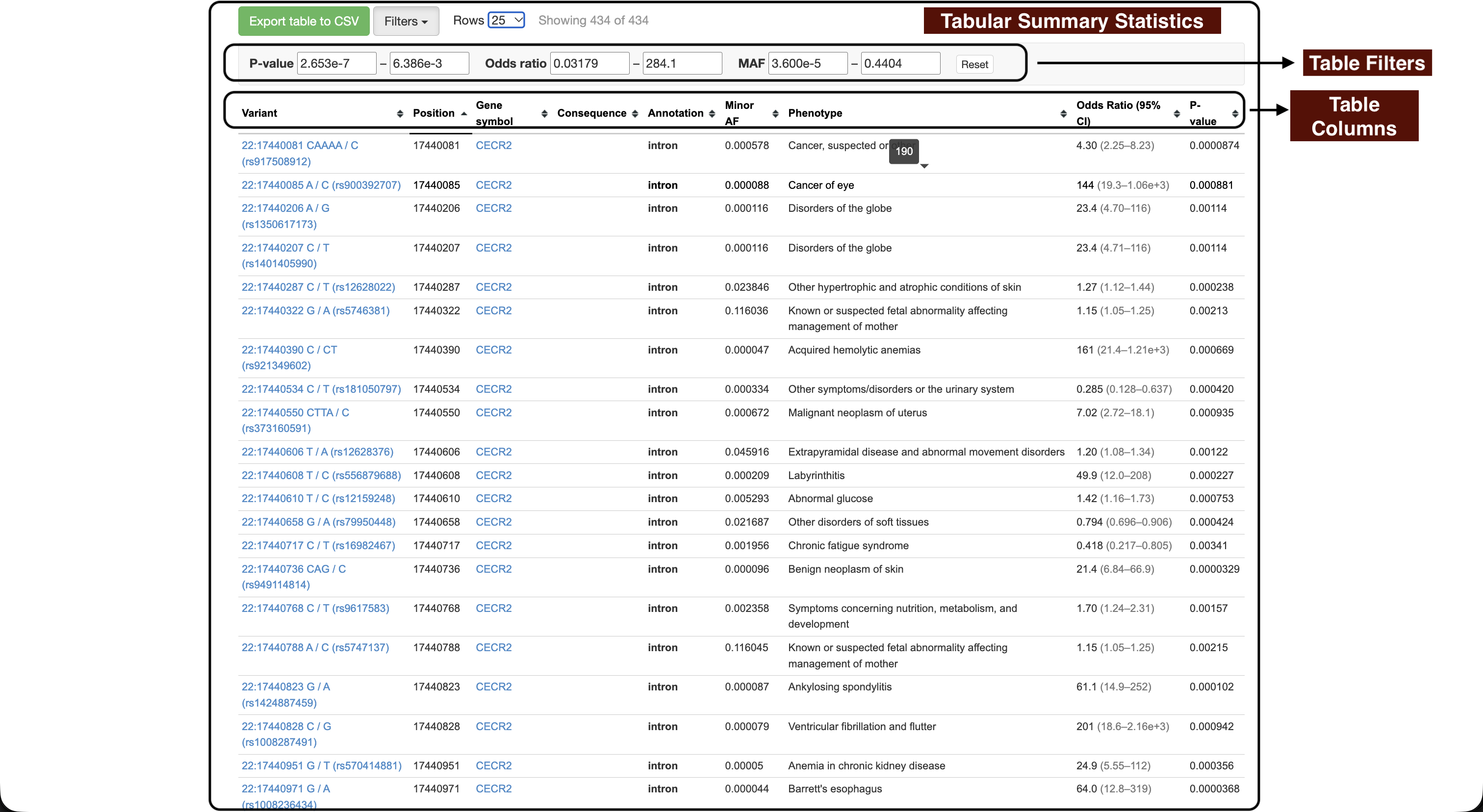
Shows every variant in the region, regardless of which gene it falls in. Columns and controls match the gene page. See Reading the results table to see details about each column and Filtering, sorting and exporting to see how to filter, sort and export data.
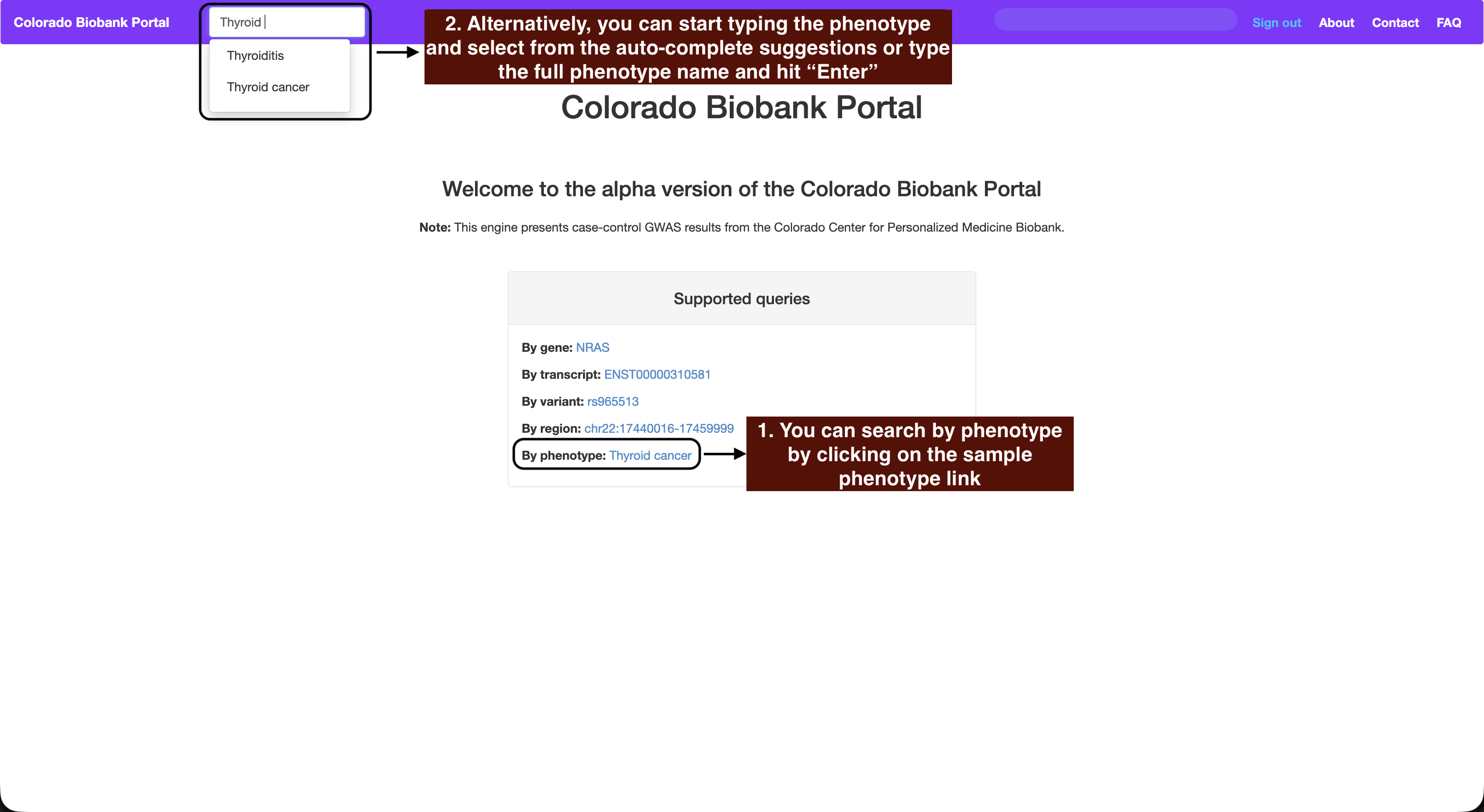
1. Start the search
Click the By phenotype example on the home page (Thyroid cancer), or start typing a condition name in the search box and pick from the suggestions.
You can also search by phecode. Leading zeros are optional.
070.4 and 70.4 both find Chronic hepatitis.
2. Phenotype annotation
The top of the page gives the phecode and its description, along with how many people in the biobank are counted as cases and how many as controls for this phenotype. A phenotype with few cases will produce weaker associations and wider confidence intervals.
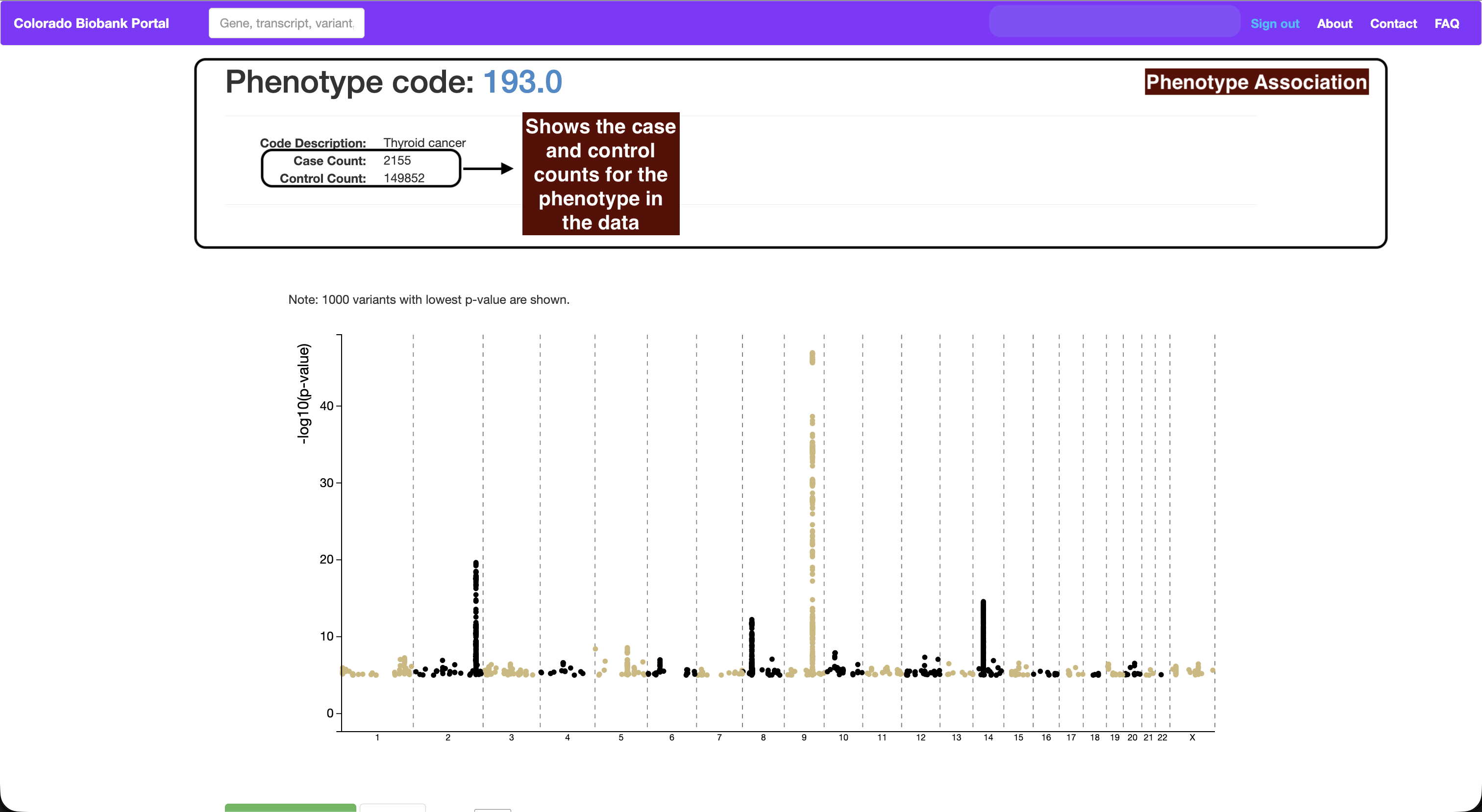
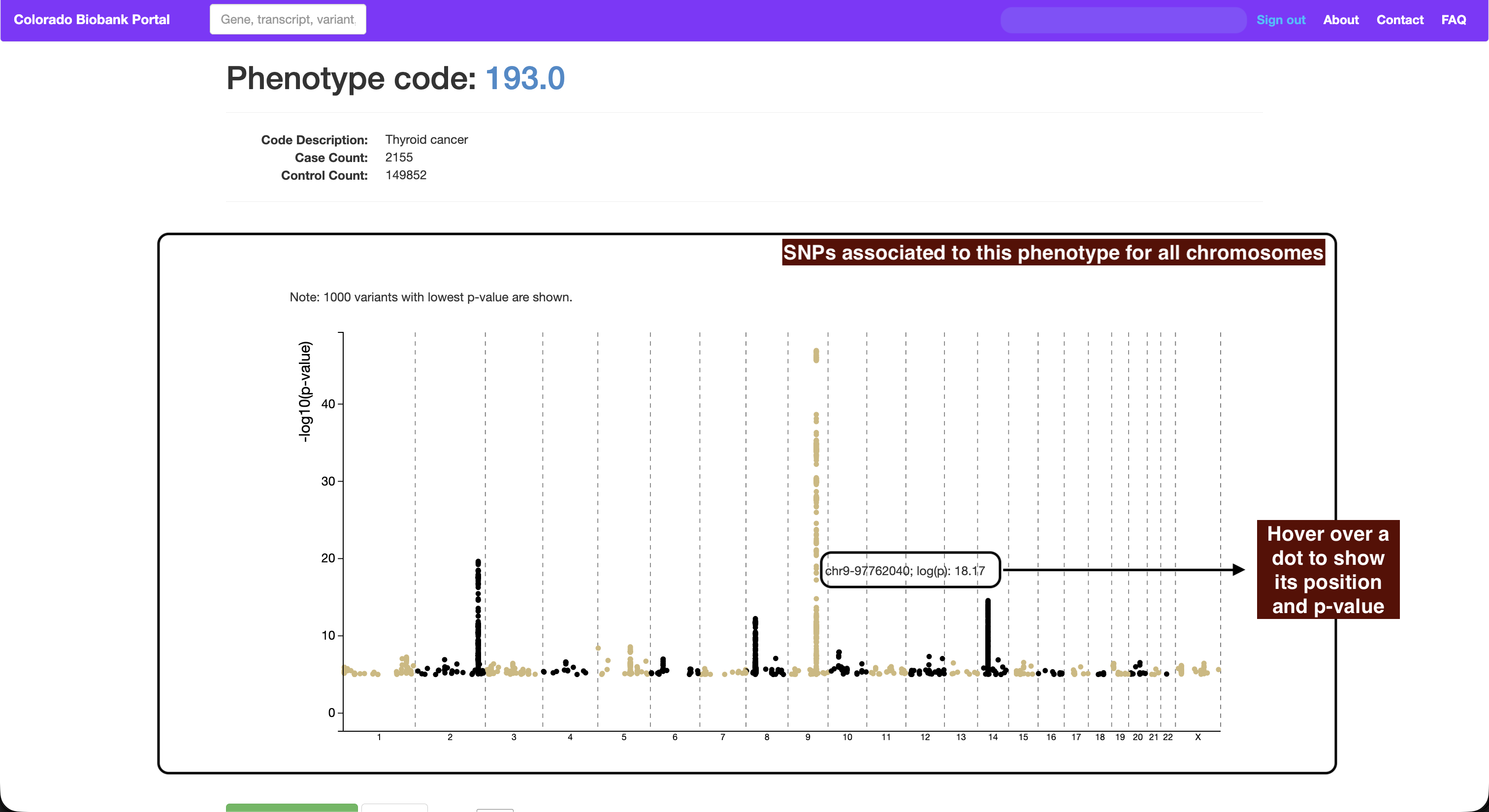
3. Manhattan plot
Each dot is a variant, positioned by its location across all chromosomes, with −log10(P-value) on the y-axis. Vertical stacks of dots mark loci where many nearby variants are associated with the phenotype. Hover a dot for its position and p-value.
4. Variants table
The same top hits in tabular form. Columns match the gene page except that there is no Phenotype column and every row concerns the phenotype you searched for. See Reading the results table and Filtering, sorting and exporting.
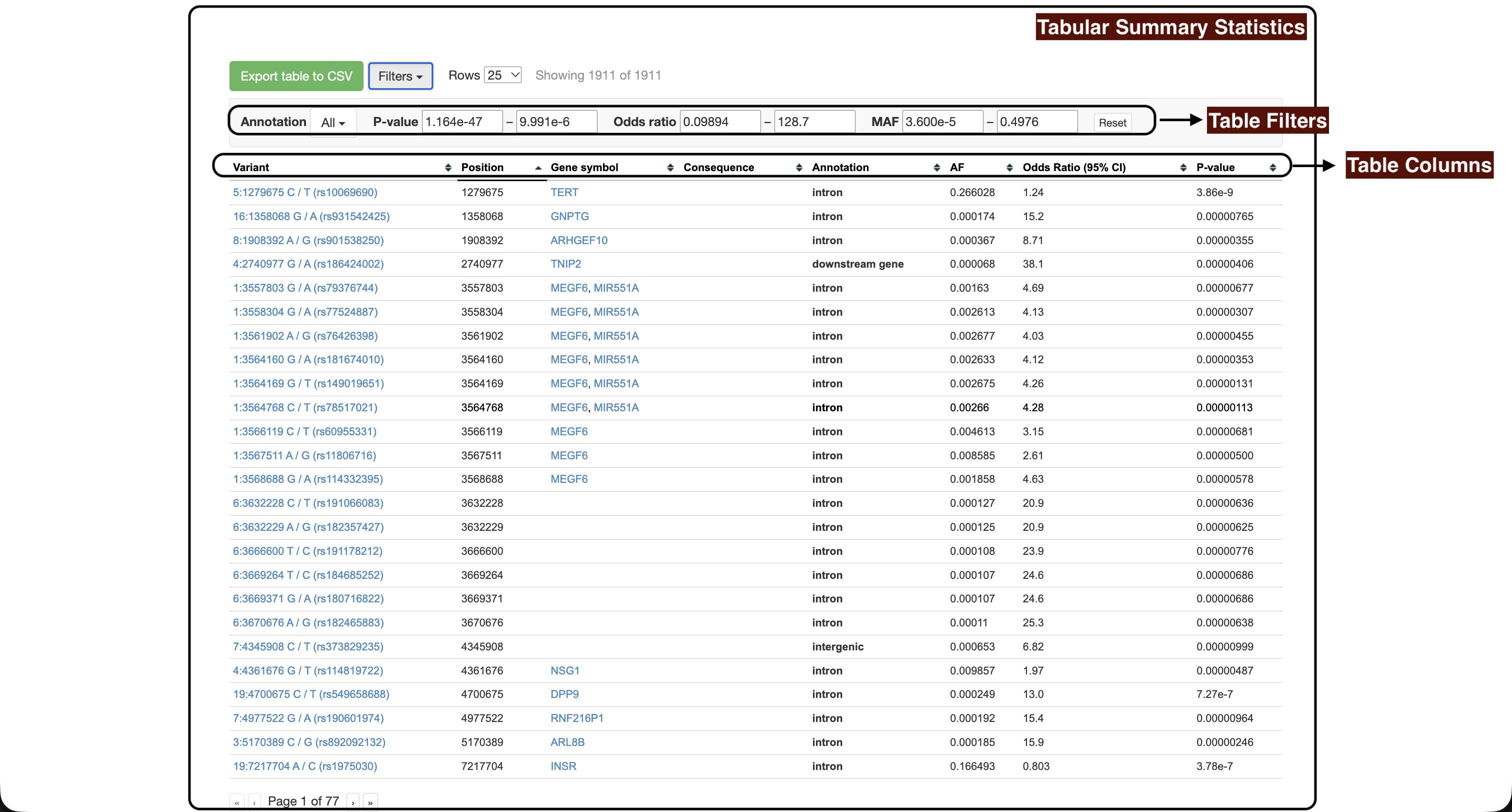
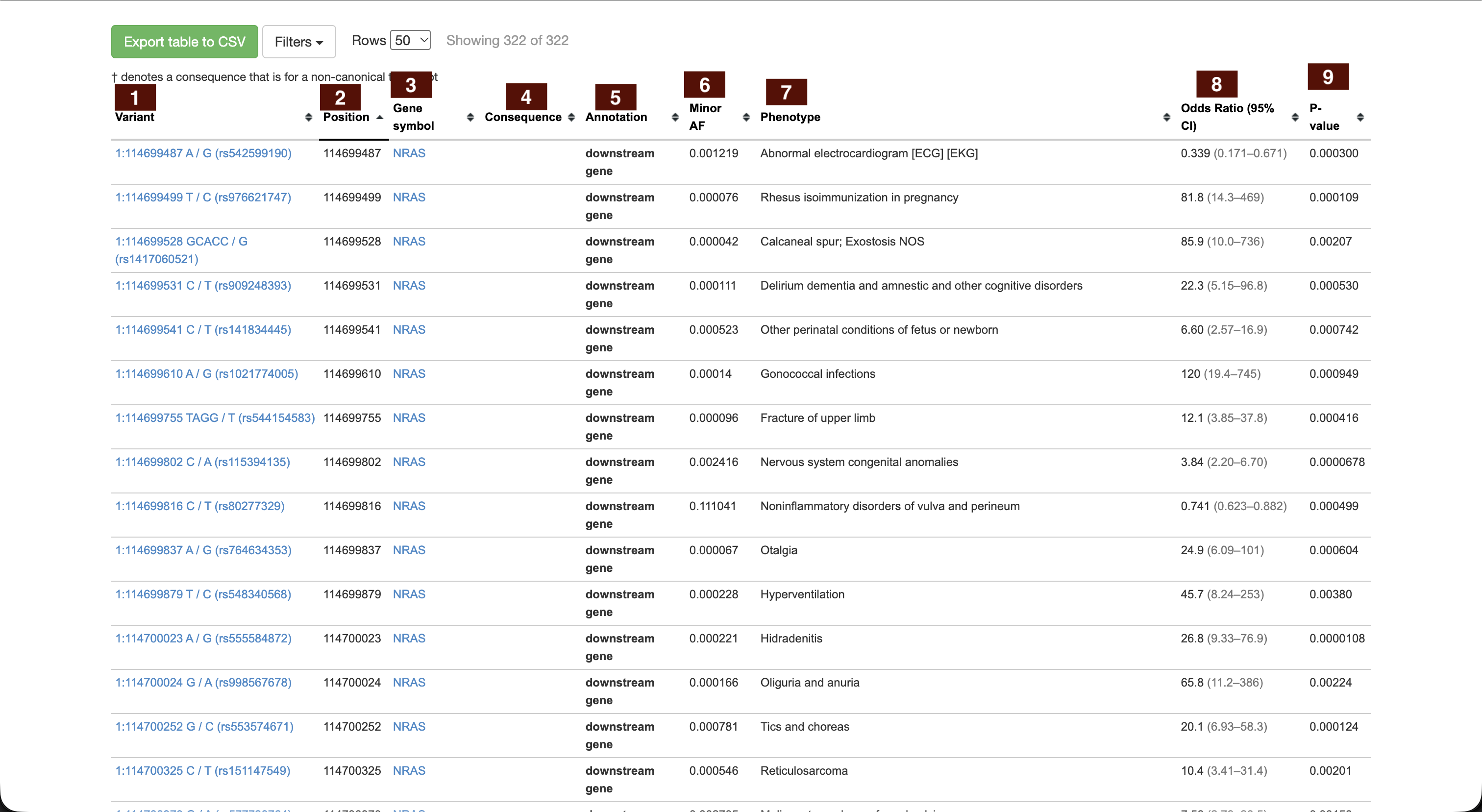
The gene, transcript, region and phenotype pages share one table layout. Each row is a variant paired with the phenotype it is most strongly associated with. (The variant page is different. See Search by variant.)
- 1. Variant
-
Chromosome and position, the reference and alternate alleles, and the dbSNP
rsID in brackets. For example
22:23763464 G / T (rs575501011)is a change from G to T at position 23,763,464 on chromosome 22. Where dbSNP has merged several IDs together, only the current one is shown; the retired ones still work in the search box. - 2. Position
- Genomic coordinate, on the GRCh38 (hg38) assembly.
- 3. Gene symbol
- Official symbol of the gene or genes the variant falls in.
- 4. Consequence
-
The specific change to the protein or transcript, where one is predicted.
For example,
p.Pro185Ser. A dagger (†) means the consequence is for a non-canonical transcript. - 5. Annotation
- The variant's predicted effect class, i.e., missense, synonymous, intron, splice region, 3' UTR, upstream gene and so on. This is the worst consequence across the transcripts of the gene.
- 6. Minor AF
- Minor allele frequency: how often the less common allele occurs, among CCPM Biobank participants.
- 7. Phenotype
- The phenotype giving this variant its strongest association. Not shown on the phenotype page, where every row concerns the same phenotype.
- 8. Odds Ratio (95% CI)
- How much more likely the phenotype is among carriers of the variant than among non-carriers, followed by its 95% confidence interval in brackets. Above 1 means carriers are more likely to have the phenotype; below 1, less likely. The interval shows how precise the estimate is: a narrow interval that does not include 1 is a well-estimated association, while a very wide interval, often on rare variants with few carriers means the odds ratio itself should not be read too closely.
- 9. P-value
- How likely an association this strong would be by chance alone. Smaller means less likely to be a coincidence.
Why does the Minor AF column sometimes say MAC<10?
To protect participant privacy, the portal does not publish a frequency for a
variant carried by fewer than ten alleles in the biobank. Those cells read
MAC<10, i.e., minor allele count under ten, rather
than being left blank, so you can tell a withheld frequency from one that
simply isn't available. A cell showing an em dash (—) means no frequency
was recorded for that variant at all.
Sorting
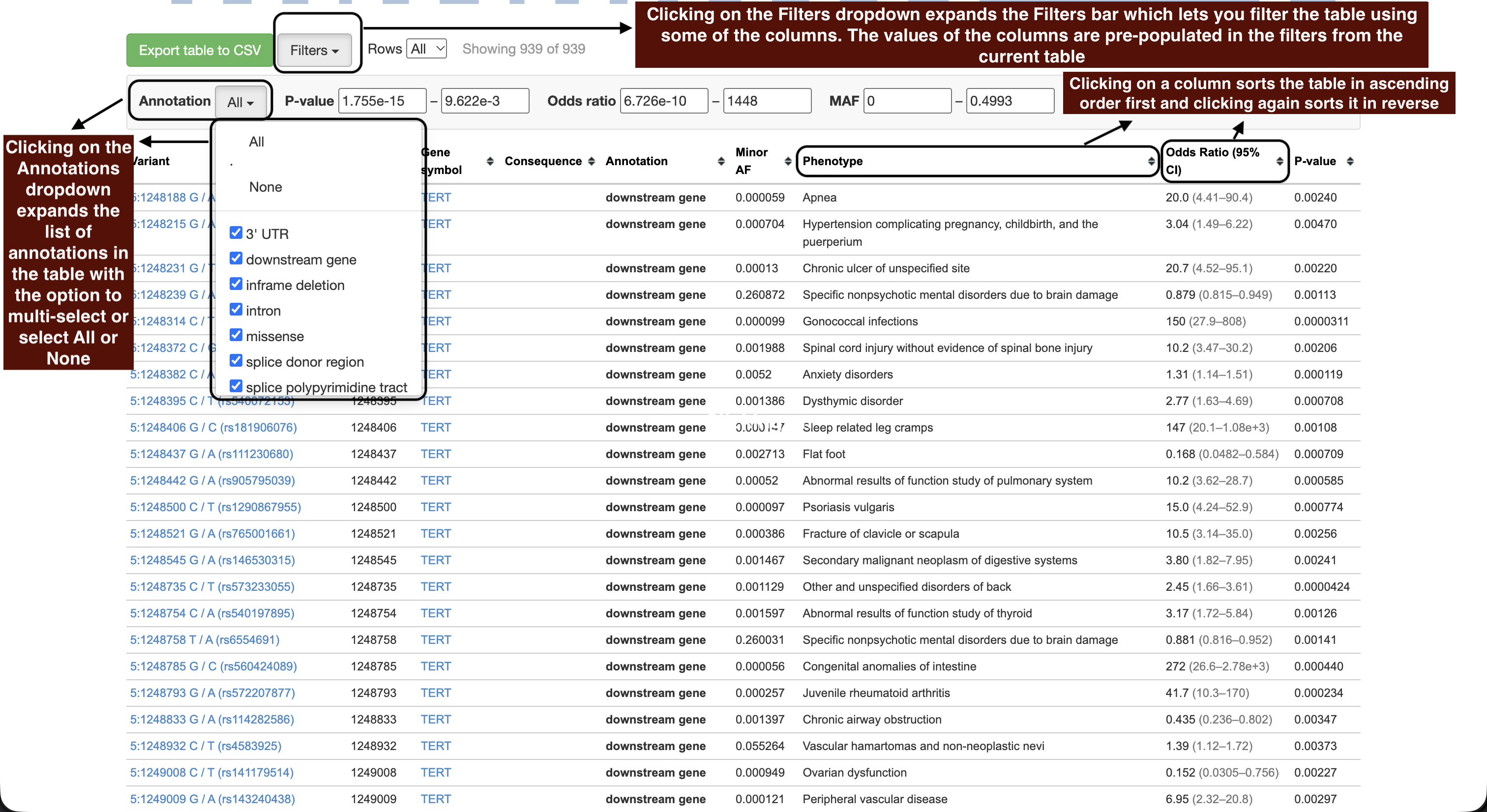
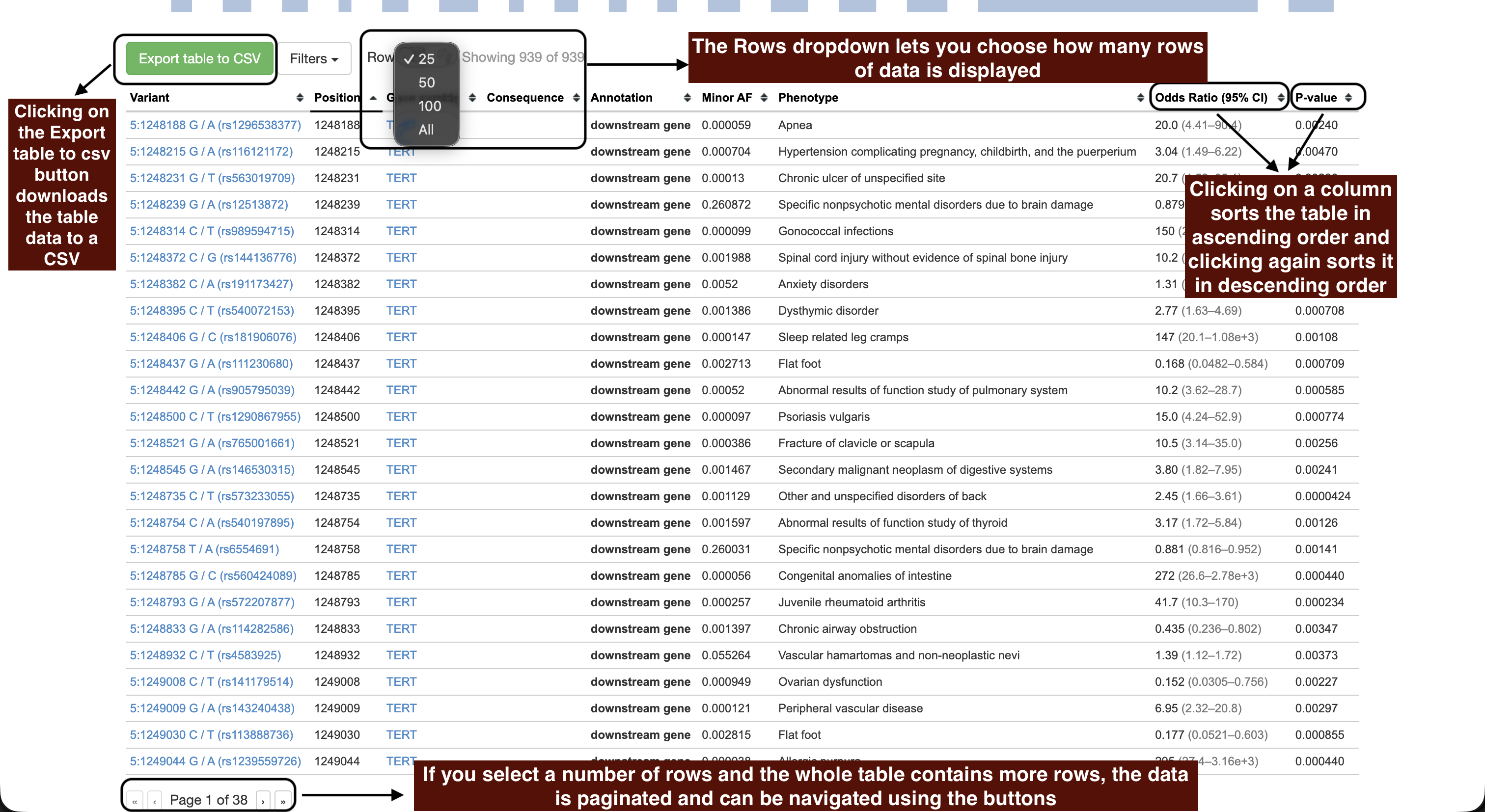
Click any column header to sort by it; click again to reverse. Sorting applies to the whole filtered result, not just the page you are looking at, so sorting by p-value always brings the strongest association to the top.
Filters
The Filters button opens a panel above the table. Each control starts at the full range of whatever is in that table, so the unfiltered view is the starting point and you narrow from there.
- P-value
- Lower the upper bound to keep only stronger associations, i.e.,
0.05, or5e-8for genome-wide significance. - Odds ratio
- Restrict to a range of effect sizes, in either direction. The bounds follow the odds ratio itself, not its confidence interval.
- MAF
- Restrict by allele frequency. Raise the lower bound for common variants, lower the upper bound for rare ones.
- Annotation
- Tick only the consequence types you want, such as missense and splice region. The button shows how many of the available types are selected.
- Category (variant page only)
- Tick only the phecode categories you want.
Values outside the range present in the table snap back to the nearest allowed value. Reset returns everything to the full range. The count beside the buttons shows how many rows match, for example, Showing 142 of 1,208.
MAC<10 and are
treated as the rarest possible when you filter by MAF, so they are included by
default and drop out as soon as you raise the lower bound above zero.
Rows and paging
Rows sets how many rows to show at a time, i.e., 25, 50, 100 or all of them. When a result runs to more than one page, page controls appear below the table.
Export to CSV
Export table to CSV downloads a spreadsheet of everything
currently matching your filters and not just the page on screen. Censored
frequencies export as MAC<10, matching what you see. Odds
ratios export as a plain number without the confidence interval, so the
column stays usable in a spreadsheet.
Still stuck? Get in touch and we'll help.